Native clients
Orqella,
in your pocket.
The mobile apps are another client for the machines you already run — not a separate installation and not a cloud dashboard. Sign in to Link, choose a machine, and open its dashboard over a direct, authenticated tunnel.
iPhone and iPad
The iOS beta is distributed through Apple TestFlight. Install TestFlight, join the public beta, then install Orqella from the TestFlight app.
- Requires iOS or iPadOS 16 or newer.
- Sign in with a passkey or your Link email and password.
- Your phone registers as a Link device automatically.
- Optional Face ID, Touch ID, or device-passcode app lock.
Join the TestFlight beta
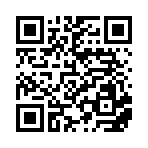 Scan with your iPhone or iPad to open the invite in TestFlight.
If TestFlight says the beta is not accepting testers, Apple may still be reviewing the current build. Try the link again shortly; the invite does not expire.
Android
The Android shell is built and tested on Android 16, but the Google Play testing track is still being prepared. There is no public Android install link yet.
- Requires Android 8 or newer.
- Same Link sign-in, machine picker, and foreground tunnel.
- Passkeys use Android Credential Manager.
- App lock uses biometrics or your device screen lock.
Ask to join the Android beta
We will publish the Play opt-in link here as soon as the testing track is live. The email address is only used to send that link.
What you need
The beta is for people who have an Orqella hub and a Link account. Create a Link account if you do not have one yet. It is not a hosted demo.
01
Run a hub
Install the Orqella daemon on a machine you control and confirm the dashboard opens locally.
02
Sign in to Link
Enable Link on the hub and sign in with the same account you will use on the phone.
03
Join the beta
Install TestFlight, accept the invite, install Orqella, and pick your machine.
What to test
Connection and reconnect
- Sign in with a passkey and with the email/password fallback.
- Switch between Wi-Fi and cellular while the dashboard is open.
- Background the app, return, and confirm the dashboard reconnects.
- Use Disconnect tunnel in Settings → Mobile, then reconnect.
Native surfaces
- Open a module page and a full app surface.
- Test microphone and camera permissions in a voice or camera module.
- Enable and disable the app lock from the dashboard settings.
- Send feedback from TestFlight with a screenshot when something looks wrong.
Known limits
Beta behavior
- The tunnel is foreground-only. Backgrounding the app can pause it.
- The apps are Link-only; they do not accept manual SSH targets.
- Full app surfaces need a current hub with the native app opener.
- This is early software. Expect rough edges and send feedback.
Privacy and data
- Dashboard content stays on the machine you connect to.
- Link supplies identity and path setup, not the data path.
- The app stores its Link device key in the platform secure store.
- Read the privacy policy and acceptable use policy for the hosted service.